Audience: Technical Resource, Key Stakeholders, Accounting Manager
Accounting System: MineralTree File Connect
Summary: An in-depth look of what File Connect is, how it works, who to involve in the process, and steps on how to set it up for payments only.
- What is File Connect?
- Preparing for File Connect Integration
- Download and Connect to SFTP Application
- SSH Public and Private Keys for File Connect
- Prepare File Connect Data Templates
File Connect Overview
What is File Connect?
File Connect is a comma-separated value (CSV)-based integration method compatible with most accounting software and ERPs, including on-premise environments that do not use APIs. With File Connect, MineralTree imports invoice, supplier, and payment method data from your ERP through encrypted Secure File Transfer Protocol (SFTP). This allows your finance team to automate payment workflows with TotalAP while continuing to use your ERP as the primary source of truth for accounting.
- MineralTree manages data transfer between its platform and the SFTP application.
- The client is responsible for transferring data between the SFTP and the accounting system.
- Automation of this step is possible but requires IT/development resources on your side.
Payments with File Connect
Using File Connect for payments means exporting ready‑to‑pay invoices from your accounting system into the SFTP, then paying them through MineralTree. In this mode, invoice capture, review, and approval are not handled in MineralTree — only payment authorization and execution. If invoices require data not already in MineralTree (e.g., GL account, location, vendor) then you must import that information via SFTP prior to payment.
Preparing for File Connect Integration
- Engage your technical resource. They will handle the technical aspects of integration. If your technical resource has any questions on what they can expect, please guide them to Engaging Resources for File Connect.
- Generate an SSH-2 RSA key pair. Other SSH types will not work. See instructions in SSH Public and Private Keys for File Connect.
-
Set up your SFTP site.
- Protocol: SFTP - SSH File Transfer Protocol
- Host: Provided by your implementation consultant
- Port: Leave blank
- Logon: Select "Key file"
- User: Your SFTP username provided by your Implementation consultant
- Key file: Your private SSH key you created in the step above
- Download and connect to an SFTP application if you don’t already have one.
- Familiarize yourself with File Connect Data Templates.
- Ensure Port 22 is open for SFTP transfers.
-
Perform data housekeeping. Clean up duplicate or inactive vendors and dimensions in your accounting system before importing into MineralTree.
Engaging Resources for File Connect
Because File Connect relies on the import and export of files into an external program (SFTP) to function, engaging technical resources (IT and/or Accounting System Admin) is an important part of the process - especially at the early stages of configuration and setup.
Your IT Resource
Before implementation: Generate SSH key pairs for secure file transfer (one public, one private). Due to the complexities and variations among client IT and security requirements, a technical resource on your side will need manage this initial setup and configuration.
During implementation: Download and configure the SFTP application. Enter the SSH key for security. If automating file transfers, IT will manage this. This is also where files sit between being pulled and pushed into MineralTree or between being imported (or exported) back into your Accounting System.
After implementation: IT should remain available to troubleshoot SFTP/accounting system connection issues.
Your Accounting System Administrator
- Responsible for importing/exporting data between the accounting system and the SFTP.
- Must ensure exported files contain all necessary data and headers, though column order and column names can be mapped during Implementation.
-
Handles importing invoices and payment status back into the accounting system.
Download and Connect to SFTP Application
Introduction & Disclaimers
MineralTree does not endorse specific SFTP tools, but FileZilla and WinSCP are commonly used.
To generate SSH keys, please reference SSH Public and Private Keys for File Connect.
FileZilla Installation
- Download and install FileZilla.
- Open File > Site Manager.
- Create a new site:
- Name: e.g., “MineralTree SFTP”
- Protocol: SFTP – SSH File Transfer Protocol
- Host: Provided by consultant
- Port: Leave blank
- Logon: Key file
- User: SFTP username from consultant
- Key file: Your private SSH key
- Connect.
- Repeat for each MineralTree company (unique usernames, same SSH keys).
- You will use the same SSH keys
- MineralTree will provide a unique username.
Once installed, you'll be able to use it regularly by navigating to the Site Manager (File > Site Manager) and clicking into the SFTP connection you created above. Connect, and then you'll be ready to transfer files to and from the SFTP and your Accounting System.
WinSCP Installation
- Download and install WinSCP.
- Create a new connection:
- Name: e.g., “MineralTree SFTP”
- Protocol: SFTP – SSH File Transfer Protocol
- Host: Provided by consultant
- Port: Leave blank
- Logon: Key file
- User: SFTP username from consultant
- Key file: Your private SSH key
- Connect.
SSH Public and Private Keys for File Connect
MineralTree requires an SSH‑2 RSA key pair in OpenSSH format.
Keys can be generated in various ways. If your IT resource does not have a key generator, we have instructions below for PuTTy, a free key generator.
PuTTY SSH Generator Instructions
- Download PuTTy
-
Run the .exe file
-
Once in the Key generator, click on the Key dropdown and select SSH2-RSA. This is the only key type that will work with the system.
-
In the Parameters section where it asks for the number of bits in a generated key, type in either 2048 or 4096. The higher the bits, the harder the code will be to crack.
-
Click the Generate button.
-
A key pair has now been generated! The key should start with "ssh-rsa AAAA" and if it does not, then it means you have selected the wrong key type in step 3.
- In the Key comment field, enter any comment you'd like, to help you identify this key pair (e.g. location, office, etc). The key comment is particularly useful in the event you require more than one key pair for multiple companies in the system.
- Optional: Type a passphrase in the Key passphrase field & re-type the same passphrase in the Confirm passphrase field (if you plan to automate the file transferring between SFTP and Accounting System, you should not create a passphrase).
-
Save the private key. This is the key that you will keep and not share. It should be saved in a location that only you can access and that you will not lose. If you lose your keys you could become locked out of the system and need to generate new ones from scratch.
-
Copy and paste your public key from the Public key for pasting into OpenSSH authorized key file area and send it to your implementation manager at MineralTree (with the comment if necessary).
File Connect SFTP Folder Structure & Workflow
Folder Structure
When connected to the SFTP site, under "Filename" you will see folders used at different stages of the AP workflow:
- Uploads – place files to be imported into MineralTree.
- Errors – incorrect files or lines.
- Processed – valid lines from partially correct files.
- Exports – files generated by MineralTree (payments and credits).
Workflow
- Assemble file templates from accounting system data.
-
Upload files into the Uploads folder. MineralTree checks every 15 minutes.
- Correct files → imported into MineralTree.
- Entire file incorrect → moved to Errors folder.
- Partially incorrect → valid lines processed, invalid lines moved to Errors.
- Export files from MineralTree (e.g., invoices, payments). These appear in the Exports folder.
- Import back into accounting system manually or via automation.
Prepare File Connect Data Templates
MineralTree provides a built‑in file mapping tool that enables you to align ERP file formats with the MineralTree standard format. This tool allows you to streamline imports and exports without manual file changes, ensuring consistent and efficient data synchronization with your ERP system.
While data flowing into MineralTree does not need to follow a rigid format, certain mandatory columns must be present. In addition, files must be imported into the SFTP in a specific order due to dependencies between data sets. For example, invoices require a vendor to be specified, so vendor data must be uploaded before importing invoices.
Export your data from the Accounting System
To bring information into MineralTree:
- Export data from your accounting system.
- Format it into the correct file templates.
- Import the files into the SFTP, where MineralTree will pick them up and add them into the system.
The file mapping tool helps translate accounting system data into MineralTree’s required format. It allows you to adjust column names and order, but all required data must be present. After the initial large import, you will occasionally need to export updated data (e.g., new vendors) into the SFTP.
Preparing your file templates for the initial import
The initial import will be performed with your MineralTree Implementation Manager. These files will be reviewed prior to upload to ensure alignment with your process.
Import File Templates: Payments Only
- Payment Methods* (Bank Accounts you will be paying from)
- Vendors*
- Open Invoices*
- Open Credits (if applicable)
*Required
Export File Templates: Payments Only
- Payment Sample*
- Credit Export
*Required
You can find the standard import and export templates attached below. Each CSV file includes instructions that outline the required fields and formatting rules. Payment and Credit export templates are fully customizable—columns can be rearranged, renamed, or removed as needed.
Note: After importing vendors using the below template, please follow the Vendor Information guide to download your Vendor Report out of MineralTree. This Vendor Report now becomes the import template for Payment Type.
Please reach out to your MineralTree Implementation Manager if you have any further questions or need assistance at any point in the File Connect integration process.
Credit Application for File Connect
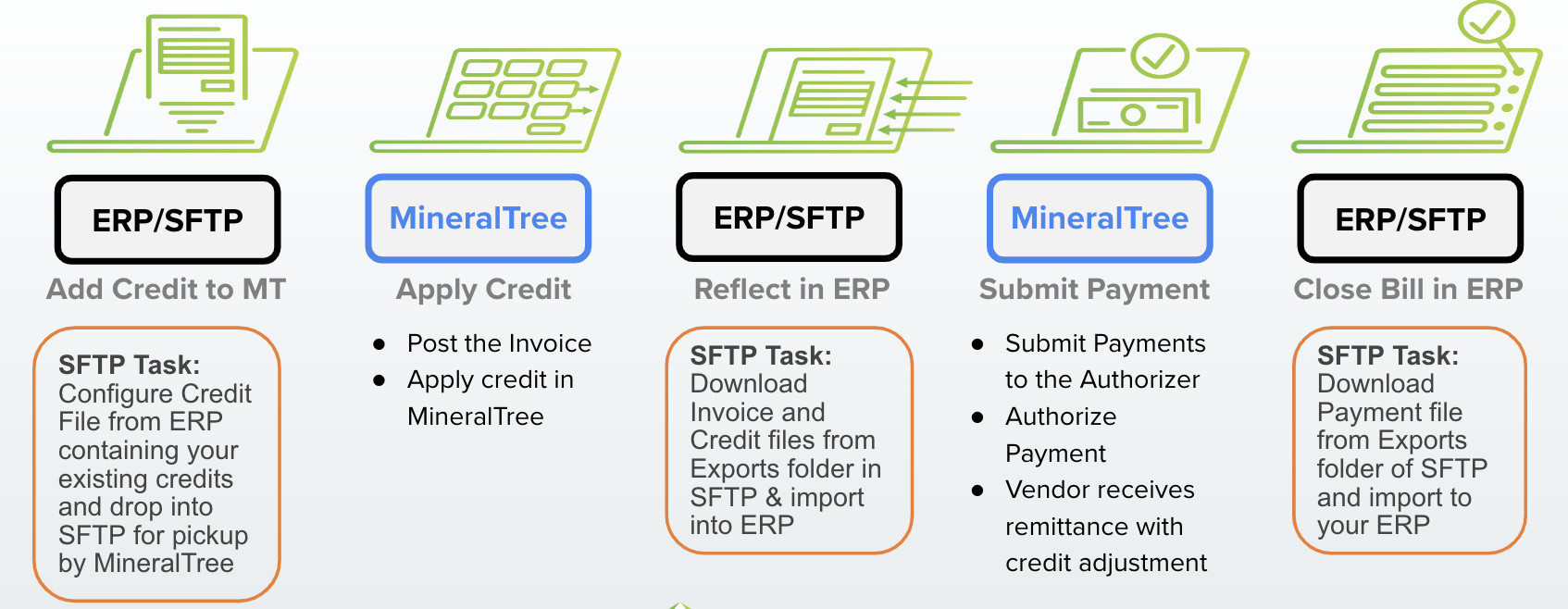
Configure the credit file template. Export credits from your accounting system, format them, and upload to SFTP.
Apply the credit in MineralTree. Post invoices and apply credits following the Credit Application instructions.
Reflect credit application in accounting system. Applying the credit in MineralTree and posting the invoice generates both an invoice file and a credit file in the exports folder of the SFTP. Import files back into the accounting system to update your bills.
Submit and authorize payments in MineralTree. This generates a payment file in the Exports folder. Vendors will receive a remittance email with the credit information and the final invoice balance.
Close the bill in accounting system. The Payment File will be available in the Exports folder in the SFTP. Import the file into your accounting system to close out the bills.
Customer Support
Please reach out to Customer Support with any questions:
- Phone: 855‑672‑9669
- Email: mtsupport@mineraltree.com